

Valpas
Keep your Mac awake for exactly as long as you say — one switch in the menu bar, and a countdown that says when it ends.

Version 1.4 · 1.1 MB · macOS 13 (Ventura) or later · Ko-fi asks for no account, only an email for the download link · Apple Silicon & Intel · Sandboxed · Notarized by Apple
brew install --cask KirsuLab/tap/valpas
Keep your Mac awake, for exactly as long as you meant to
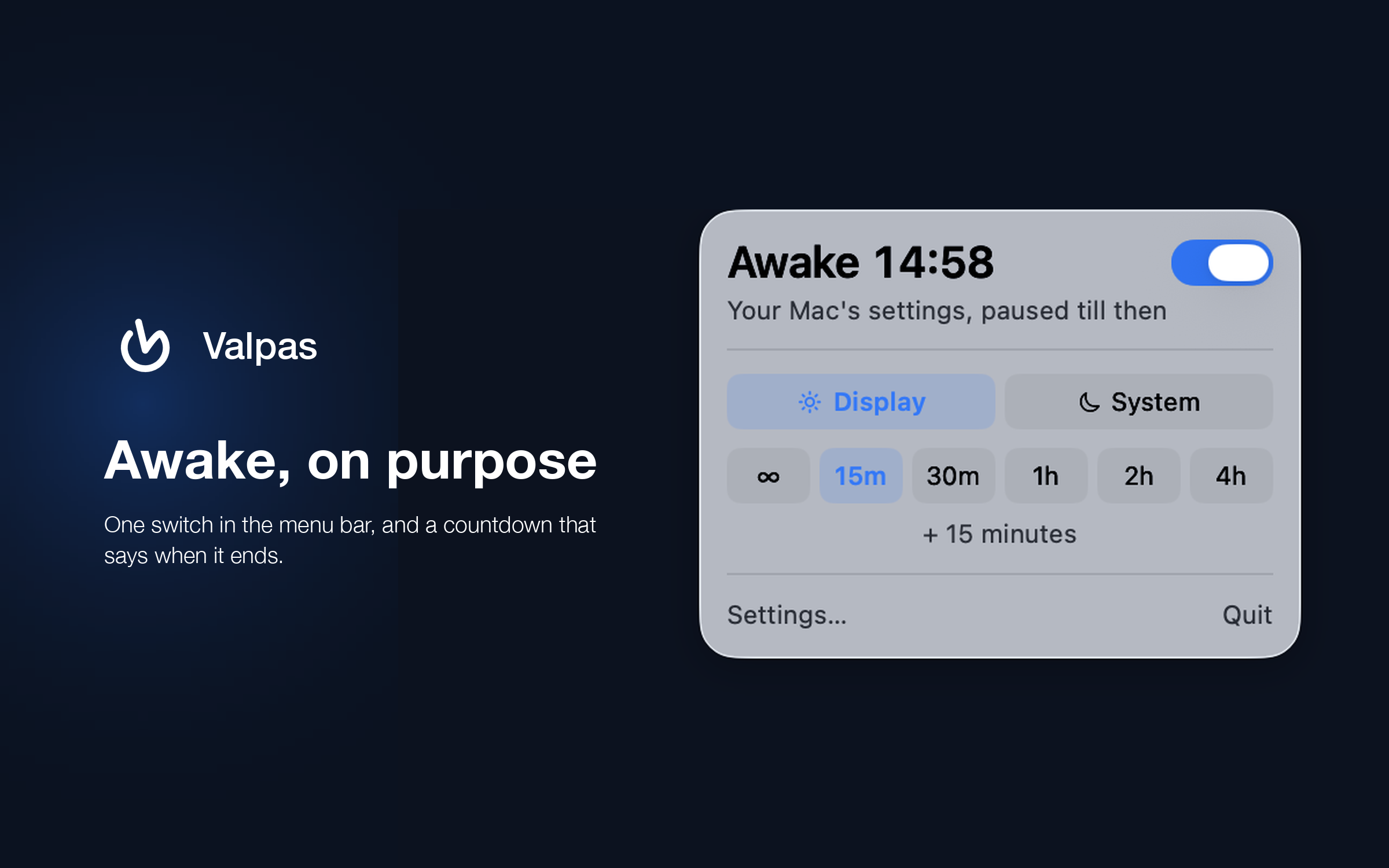
A Mac that falls asleep in the middle of a render, a long upload, a download, a build, a backup, a presentation or an AI coding agent working through the night is a small disaster you have to notice, undo and start again. Valpas is the switch that prevents it: click the icon in the menu bar, pick 15 minutes, an hour, four hours or forever, and your Mac stays awake — with the time remaining right there, so you never have to wonder whether it's still on. When the countdown ends, nothing is taken away and nothing snaps off: Valpas simply hands your Mac back to its own sleep settings. That is the whole idea — it doesn't override your Mac, it postpones it.
Features
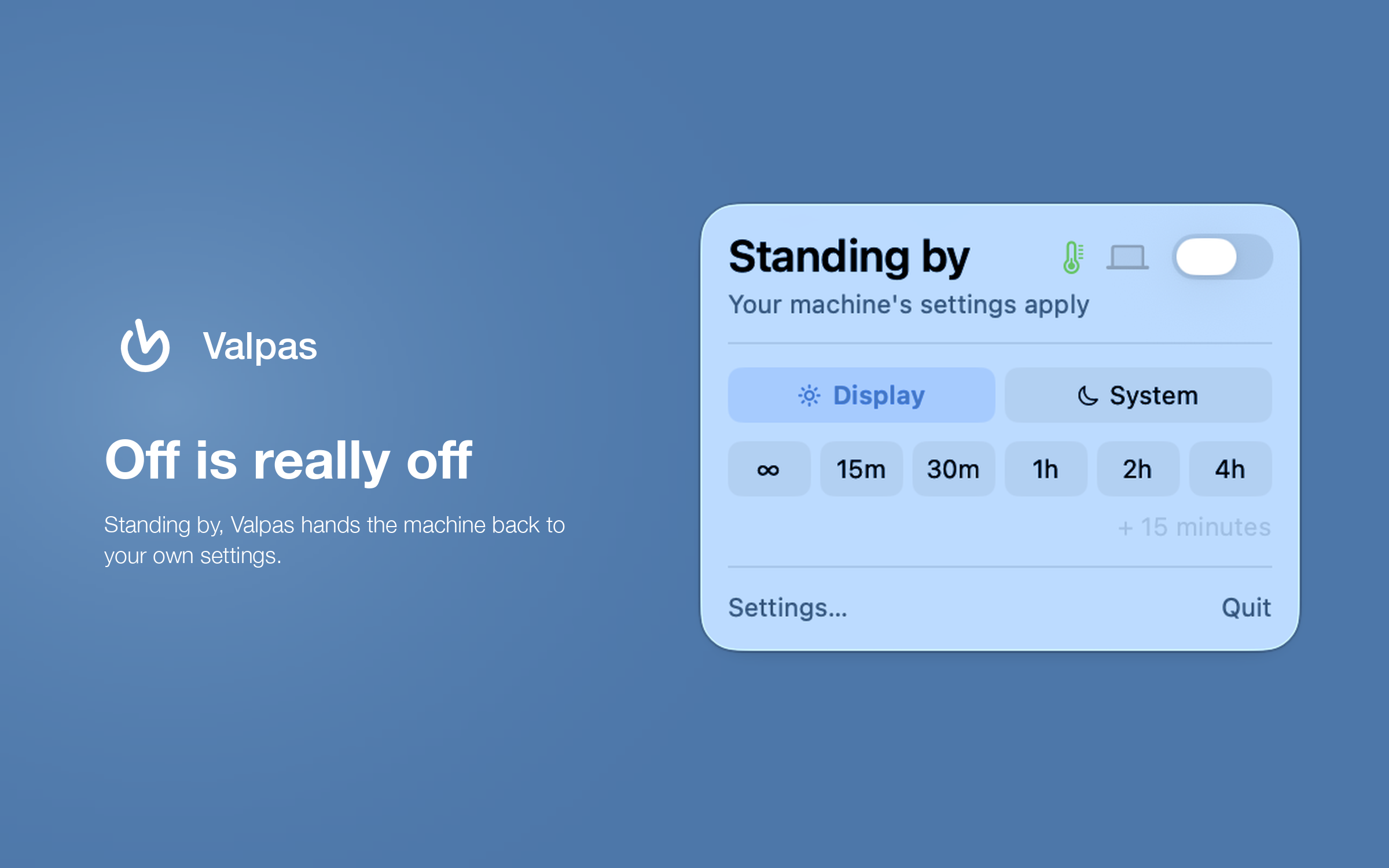
- One switch, one glance — the panel says what is happening in plain words: Awake 13:59 while a session runs, Standing by when it doesn't, and what your Mac will do either way
- Choose how long — 15 minutes, 30, one hour, two, four, or forever, and + 15 minutes whenever the job runs longer than you thought
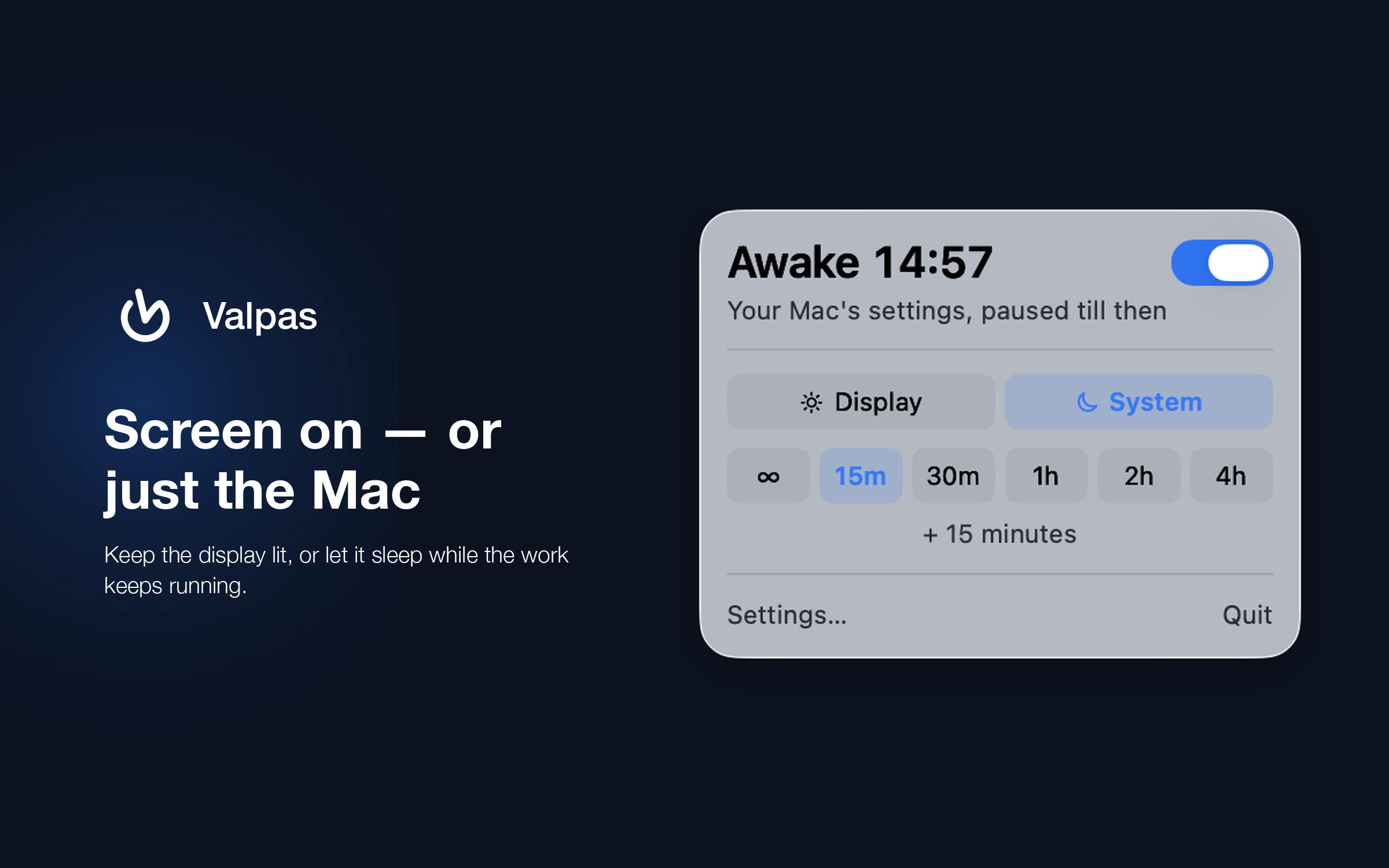
- Two modes — keep the display lit and the screen saver away, or let the screen sleep while the Mac itself keeps working
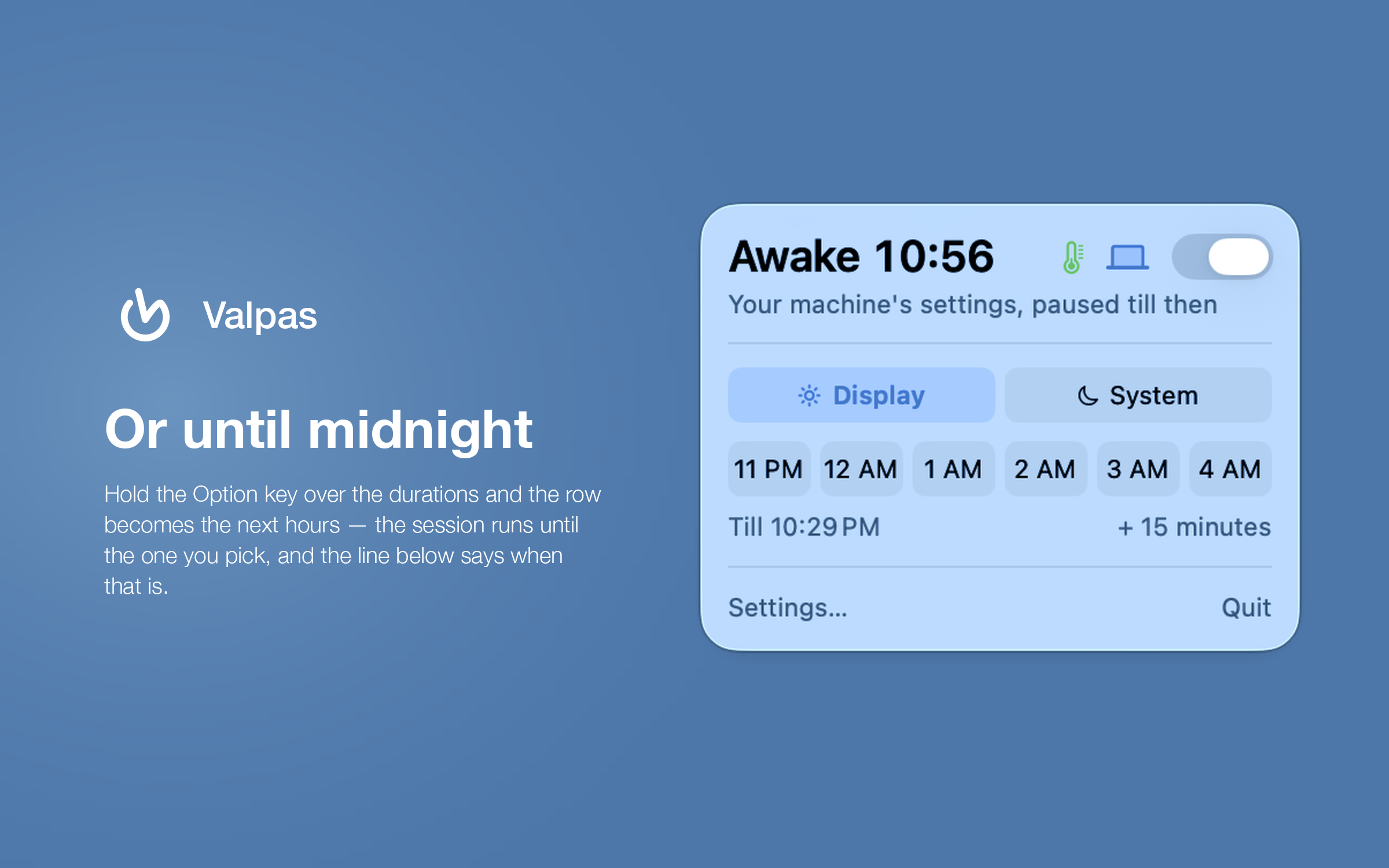
- Say when, not how long — hold the Option key over the durations and they become the next whole hours; the line beside “+ 15 minutes” always shows the time the session ends
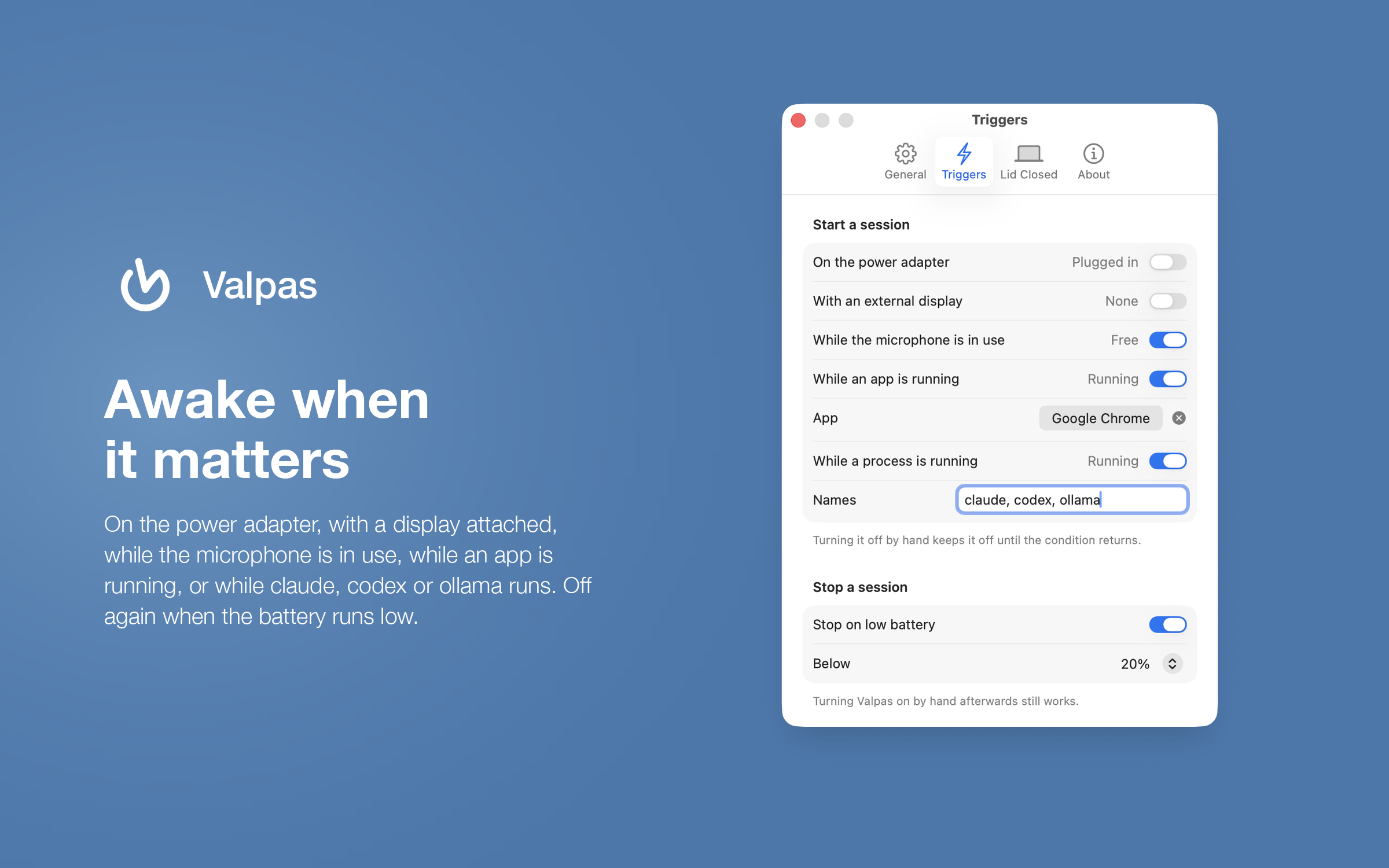
- It starts by itself — while the Mac is on the power adapter, while an external display is attached, while the microphone is in use (the meeting is in Zoom today and in the browser tomorrow), or while an app you choose is running: the render, the upload
- It watches a command, not just an app — type claude, codex, ollama and the Mac stays awake while any of them is running, then sleeps when the agent exits. Names match the process and the command it was started with, so the native binary and the npm script both count
- It stops by itself — a battery guard ends the session when the charge runs low, so an app meant to keep your Mac awake never empties it
- Your hand always wins — switching Valpas off by hand keeps it off until the condition that started it goes away and comes back
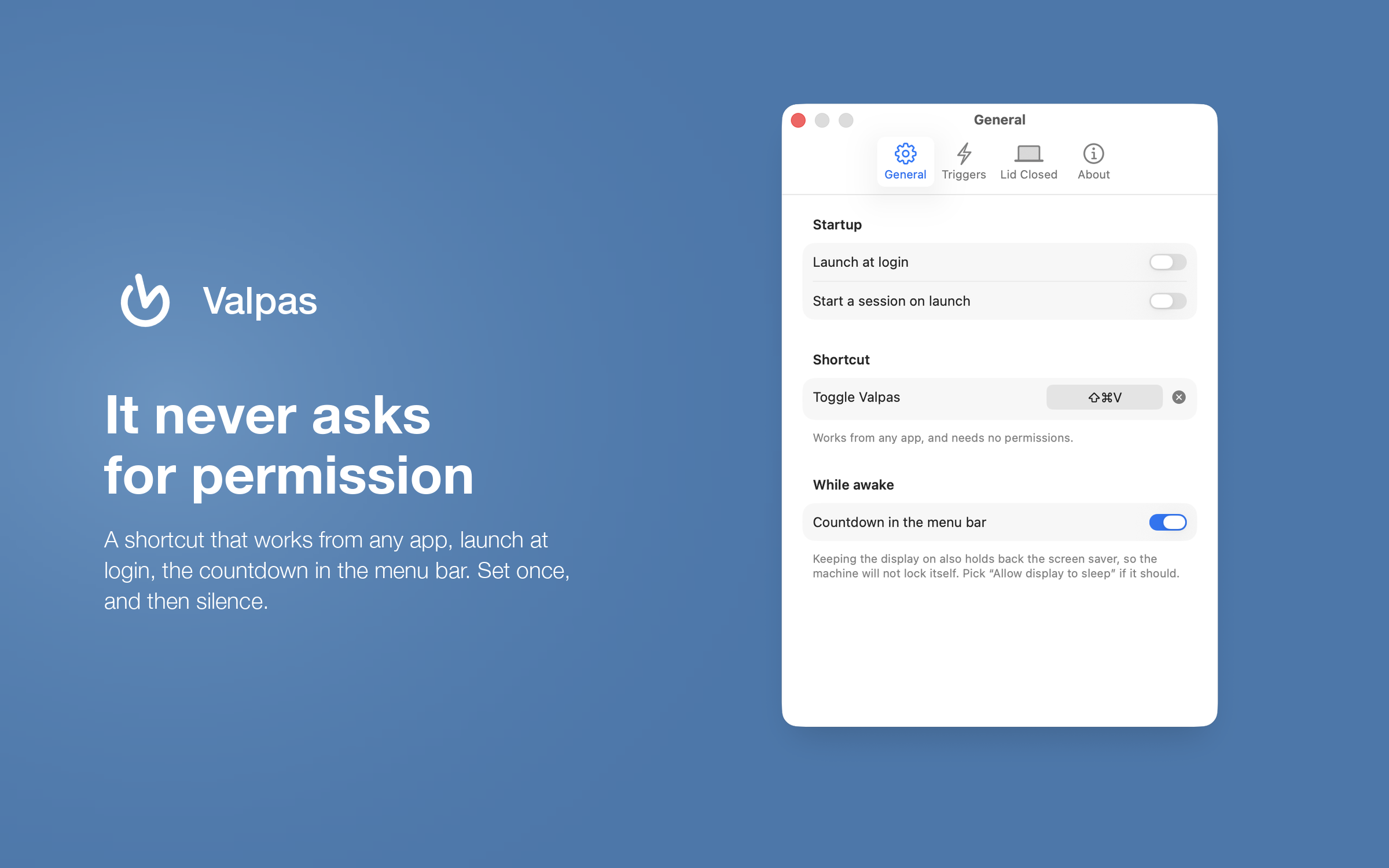
- A global shortcut — flip the switch from any app, without opening anything. It uses Carbon's hot key API, so it needs no Accessibility permission
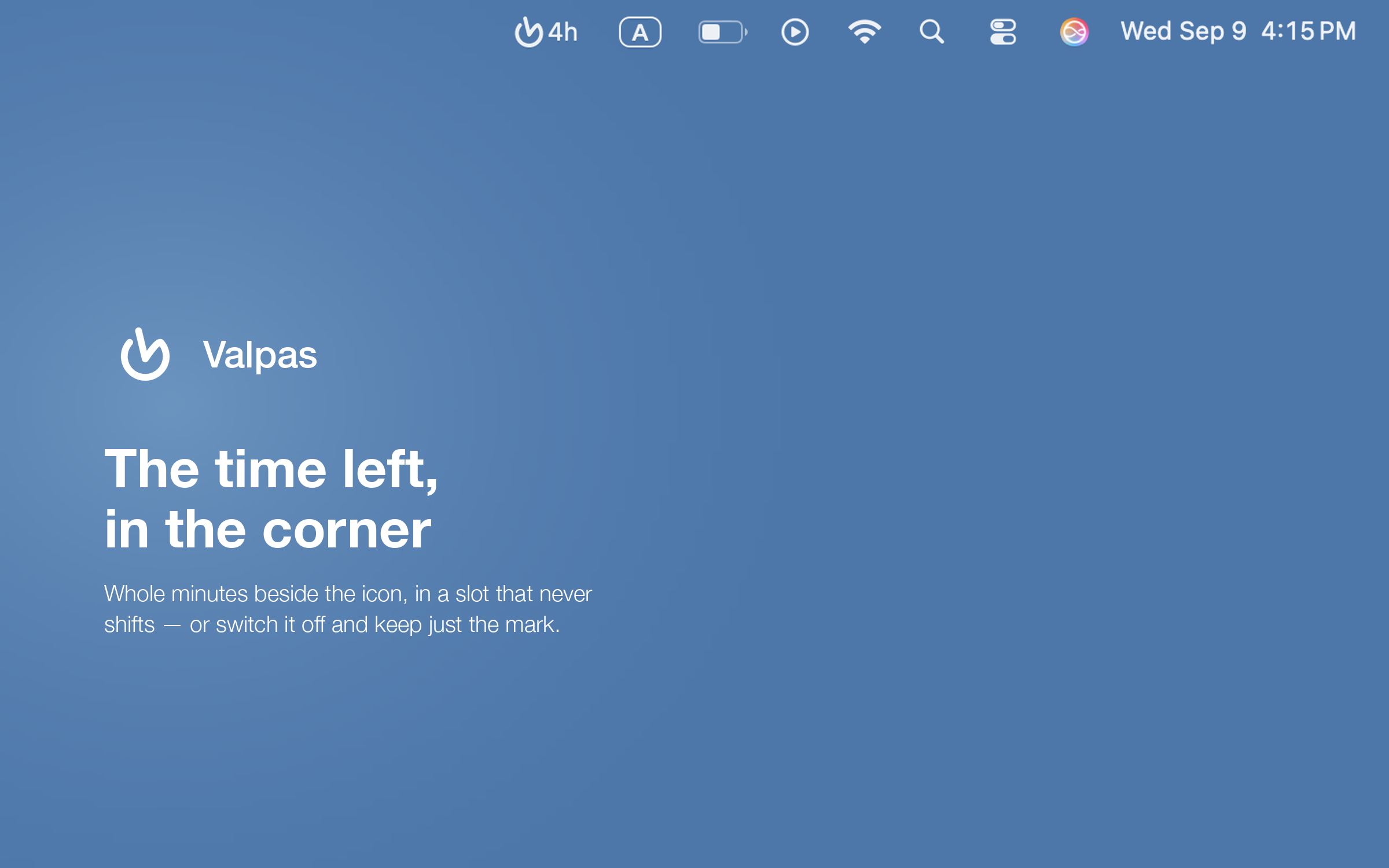
- Countdown in the menu bar — optional, in whole minutes, in a fixed-width slot so nothing beside it ever shifts
- Quiet by design — no Dock icon, no window, no notifications, no account. Launch at login, and it never asks for anything again
- Tiny and native — 2 MB, universal for Apple Silicon and Intel, written in Swift with SwiftUI, sandboxed
Two ways to get it, one difference
Both are the same app, signed and notarized by Apple. What differs is what comes beside it.
From the Mac App Store
The app, and nothing else. It arrives and updates the way everything else from the store does, and you are never asked to approve anything by hand.
From Homebrew or the disk image
The same app, and with it valpas — a command for the terminal. Homebrew puts it on your PATH; the disk image carries it beside the app.
- valpas 45m
- keep this Mac awake for 45 minutes
- valpas on
- keep it awake with no time limit
- valpas off
- stop
- valpas status
- say what Valpas is doing
- valpas run claude
- keep awake while the command runs, then let go
- valpas hold 20m
- at least 20 more minutes, never less than already set
The difference from caffeinate is who owns the session. Here it belongs to the app, not to the window you typed in: close the terminal and the Mac stays awake, with the time left in the menu bar, until the countdown ends, you flip the switch, or the battery guard steps in. And valpas status exits 0 while the Mac is being kept awake, so a script can simply ask.
Nothing leaves your Mac, because nothing is collected
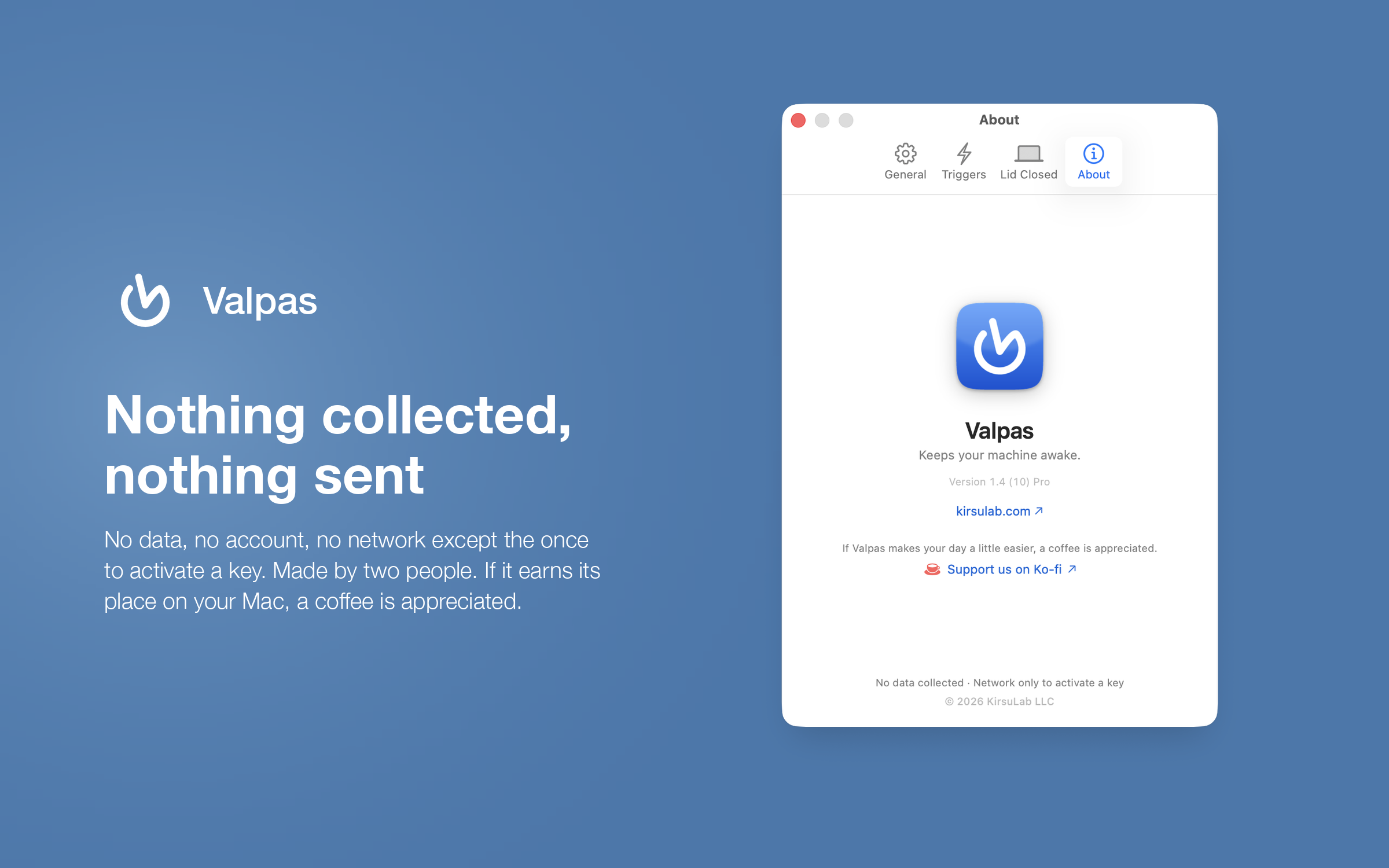
Valpas has no account, no analytics, no advertising and no crash reporting. It has no network access at all — the sandbox it ships in isn't granted any, so there is nothing to send even by accident. It asks for no permissions: not the camera, not the microphone, not your files, not Accessibility. The only thing it stores is your own preferences, on your own Mac.
What happens when the time is up
Nothing dramatic, on purpose. Valpas releases the assertion that was holding the Mac awake and steps out of the way; the Energy Saver settings on your Mac take over again, exactly as if Valpas had never run. In Keep display on mode it also holds back the screen saver for the length of the session — which means your Mac will not lock itself while the screen is being kept lit. If you want the screen to sleep and lock as usual while a long job keeps running, pick Allow display to sleep instead; it is one tap away in the same panel.
One thing Valpas does not change: closing the lid still puts a MacBook to sleep. That is macOS, and no assertion overrides it. Valpas stays quiet while the lid is shut and carries on the moment it opens. With the power adapter and an external display connected, macOS keeps a closed MacBook running on its own. Without the display, that is what Valpas Pro is for.
Valpas Pro: close the lid and walk away. Seven days free
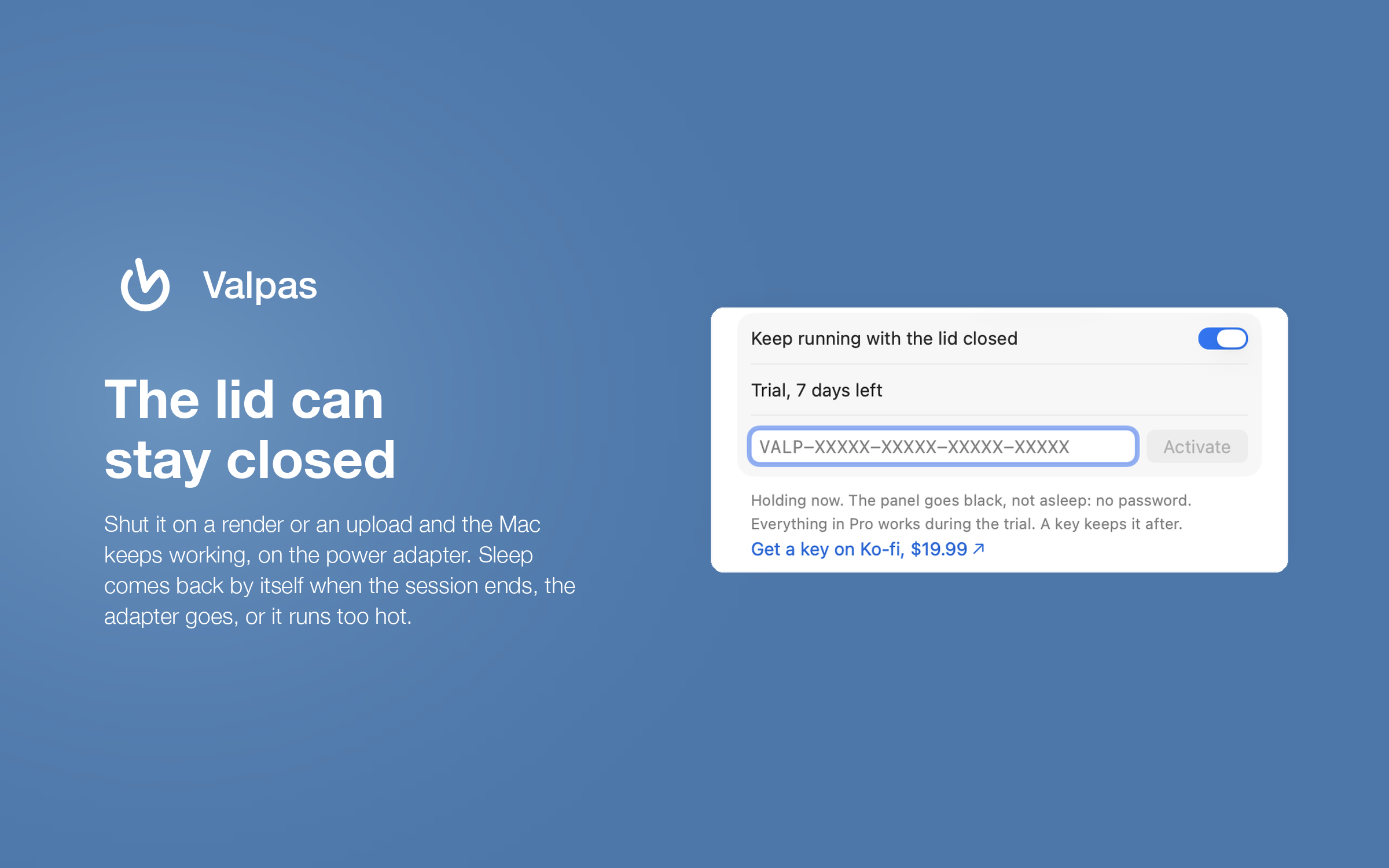
The render finishes, the upload lands, the backup runs through the night. No external display, no lid propped open, no terminal trick you forget to undo. Pro is the free Valpas with one more switch: Keep running with the lid closed. Start a session, shut the lid, and the Mac keeps working until the session ends. In Keep display on mode the panel goes black instead of asleep, so the Mac wakes without a password.
Sleep comes back by itself, four ways: when the session ends, when the power adapter is unplugged (on battery a closed lid always sleeps), when Valpas quits or is not running, and when the Mac runs too hot. Once macOS reports serious thermal pressure, Valpas hands sleep back and picks the hold up again when the Mac has cooled. The thermometer in the panel shows that pressure live.
A shut MacBook cannot cool through the keyboard. Keep it on a hard, open surface, never in a bag, on a bed or under anything. The Lid Closed tab says the same in amber, on purpose.
The switch works through a small helper that macOS asks you to allow once, in System Settings. The App Store sandbox does not allow a helper like this, so the lid-closed mode lives in the direct download and the Homebrew cask, signed and notarized with an Apple Developer ID. Everything else is the same Valpas. If you run the App Store copy, install the direct download over it.
Try it for seven days, then a key. The direct download has Pro built in. The first time you hold the Mac awake with the lid shut, seven free days begin, with everything working. After that the lid is no longer held, the rest of Valpas carries on, and the Lid Closed tab shows where to get a key. A key is $19.99 on Ko-fi, one payment, no account, and arrives by email. Paste it into the Lid Closed tab and press Activate: no reinstall. One key works on up to three Macs, and a Deactivate button frees a slot when you move on. Buying first is fine too: the Ko-fi download holds the same app, and the key arrives by email either way.
Activation is the one time Valpas uses the network: it sends the key and a hashed identifier of your Mac to kirsulab.com and receives a signed licence for that Mac. Nothing else is sent, then or later, and the privacy policy says so in full.
Questions & answers
What does Valpas do?expand_more
It keeps your Mac awake for exactly as long as you choose: 15 minutes, 30, one hour, two, four or forever, with a countdown in the menu bar. When the time is up it steps aside and your Energy Saver settings take over again.
How is Valpas different from caffeinate?expand_more
The session belongs to the app, not to a terminal window. Close the terminal and the Mac stays awake until the countdown ends, you flip the switch or the battery guard steps in. The Homebrew and disk-image builds also ship a valpas command for the terminal.
Will Valpas keep my Mac awake while Claude Code, Codex or Ollama runs?expand_more
Yes, three ways. The trigger While a process is running takes names, claude, codex, ollama, and holds the Mac while any of them is alive. The direct-download build adds valpas run claude, which holds the Mac while that command runs, and a Claude Code plugin, valpas-keep-awake, that does it from the agent's own hooks. Pick Allow display to sleep so the screen can lock while the agent keeps working.
Does Valpas keep a MacBook awake with the lid closed?expand_more
The App Store app does not: closing the lid puts a MacBook to sleep, and the sandbox allows no way around that. The direct download adds a Keep running with the lid closed switch through a small helper you allow once in System Settings. It works free for seven days from the first hold, then needs a Valpas Pro key, $19.99 once for up to three Macs.
How does the Valpas Pro trial and key work?expand_more
Install the direct download. The first time the lid is held shut while a session runs, seven free days start, everything included. When they end, the lid stops being held and the rest of Valpas keeps working. A key bought on Ko-fi arrives by email, is pasted into the Lid Closed tab and activated once, over the network, which is the only request Valpas ever makes. Deactivate frees the slot before you move to another Mac.
Can it start and stop by itself?expand_more
Yes. It can start while the Mac is on the power adapter, while an external display is attached, while the microphone is in use or while an app you choose is running. A battery guard ends the session when the charge runs low.
What permissions and data does Valpas need?expand_more
None. It has no account, no analytics, no crash reporting and no network access at all. It asks for no camera, microphone, file or Accessibility permission; the global shortcut uses Carbon's hot key API instead.
Which Macs are supported?expand_more
macOS 13 Ventura and later, universal for Apple Silicon and Intel, sandboxed and notarized by Apple. The app is about 1 MB.
App Store or direct download, which should I pick?expand_more
Both are the same signed and notarized app. The Mac App Store version is the app alone. Homebrew and the disk image add the valpas command for the terminal and the lid-closed mode, free for seven days and then with a Valpas Pro key, because the App Store sandbox does not allow the helper it needs. The Pro key on Ko-fi comes with the same disk image, so starting there is fine too.